Atlas Presenter
A presentation is a camera flying over a map, not a queue of slides. Atlas turns an Obsidian canvas into a deck: the arrows are the running order, the groups are the sections, and the whole thing stays a canvas you can edit.
What it is
Most presentation tools ask you to flatten your thinking into a list. A canvas is already the shape of an argument — things side by side, branches, a detour you might take if someone asks. Atlas presents that shape directly.
Nothing to convert
The canvas file is the deck. Edit it and present again.
The map is a feature
Press O mid-talk, read the whole map, click where you need to be.
Your notes are there
Click a wikilink to read the note over the deck, then carry on.
It leaves the vault
Export a folder anyone can open: one self-contained HTML file, recordings beside it. Print it for a PDF.
What it needs
Obsidian 1.7.2 or newer, and nothing else. Canvas is part of Obsidian and everything Atlas does is its own code — no other plugin, no service, and no network call it makes by itself.
| Optional | For | Without it |
|---|---|---|
| Excalidraw | cards embedding a .excalidraw drawing | that card says it needs the plugin; the deck runs on |
| A model you provide | Ask your notes | the feature stays shut |
| Run scripts in HTML cards | a card carrying a <script> | the card says the setting is off |
It loads on mobile, but exporting and opening a file in a browser need the desktop app, and recording needs a microphone.
Install
With BRAT (easiest, gets updates)
Install the BRAT community plugin, choose Add a beta plugin for testing, and paste the repository URL. BRAT keeps it up to date.
From a release
Download main.js, manifest.json and
styles.css from the latest release into
<vault>/.obsidian/plugins/atlas-presenter/, then enable
Atlas Presenter under Settings → Community plugins.
After updating, reload Obsidian with Ctrl+R. A plugin already loaded in memory does not pick up new files on its own.
Your first deck
- Make a canvas and put three text cards on it.
- Drag an arrow from the first to the second, and the second to the third.
- Open the command palette and run Atlas Presenter: Present.
That is the whole idea. → advances, Esc leaves. With a card selected on the canvas, the deck opens on that card — useful when you are working on slide nineteen.
The plugin ships a folder of demo canvases. 6 · A full talk is the one to present: thirty-odd cards you could stand up and give, which between them use every card type there is. 5 · Cheat sheet is the one to read — every card on it demonstrates the thing it describes.
The commands
Seven, of which one is the one you will actually use.
| Command | What it does |
|---|---|
| Present | The only one you need — the deck in a tab of its own, starting on the card selected in the canvas. Drag the tab out for a window. |
| Present from the beginning | Ignores what is selected and starts at the first card. |
| Present a variant… | Asks which talk to give, if the canvas has variants. |
| Stop presenting | Ends the talk from this window, wherever the deck is. |
| Preview the export | Opens the exported deck, running, in a tab beside the canvas. |
| Export to HTML | Writes the deck into a folder of its own — one standalone file, with any recordings beside it. Works with or without a deck running. |
| How to write a card | Writes a reference note into the vault and opens it in a pane, so what you need while authoring sits beside the canvas. It opens whichever copy is already there, so a copy you have annotated is the one you get back. |
All but the last need a canvas to be the open tab. They are also on the right-click menu of any canvas in the file explorer, and the ribbon icon presents the current one.
Atlas sets no keyboard shortcuts. Defaults collide between plugins and differ across platforms, so the choice is yours: Settings → Hotkeys, search Atlas. A pair worth binding is Present and Stop presenting. Avoid combinations built on Enter — Obsidian's capture box treats it as confirm, so they never save.
Keys while presenting
| Key | |
|---|---|
| → Space PageDown | Reveal, then the pictures, then the next card |
| ← PageUp | Back, the same way |
| M | The schematic map — titles and order, for a deck too big to read at once |
| G | Obsidian's graph view of the whole vault |
| Backspace | Return from a jump, or one level out of a peeked note |
| O | The overview — drag or scroll around the deck, Ctrl+wheel or +/− to zoom, 0 shows all, click a card to go there |
| Home End | First and last card |
| Enter | Dive into the sub-deck on this card |
| B | Blank the screen — attention on the room, not the slide |
| N | Note against the card on screen — the cursor goes to the presenter panel's box |
| R | Speak that note instead. Press again to stop; it lands on the same card |
| A | Ask your notes a question, over the deck |
| Shift+R | Record the whole meeting. The write-up indexes it by card |
| W | Read the session and write it up — opens over the deck, so it works fullscreen |
| P | Open the presenter panel — notes, the clock, what is next, and a box to write a remark in |
| E | Export the deck to one standalone HTML file |
| F | Fullscreen |
| Esc | Close the map or the note, then leave the deck |
Clicking the right two-thirds advances; the left third goes back. Clicking a control inside a card never advances the slide. Keys held with Ctrl, Cmd or Alt belong to Obsidian, not the deck — so your own shortcuts still work mid-talk.
Where the deck opens
In a tab of its own. Like any Obsidian tab, you can drag it out to a window and put that window on whichever screen you like — then press F for fullscreen. Leave it where it is and it is simply a tab you can switch away from.
A tab is an ordinary leaf, which is the point: everything Obsidian opens lands beside it rather than somewhere you cannot see. The presenter panel opens itself in the sidebar, G steps the deck aside for the real graph view and offers a way back, and N puts the cursor straight in the panel's note box. Closing the tab ends the talk — as does Stop presenting.
Speaker notes are never on the deck. The deck is what the room sees, so
%%notes%% live in the presenter panel, which opens itself in the
sidebar beside your canvas. There is a box there to write remarks into as
well — the same note N opens.
Order and sections
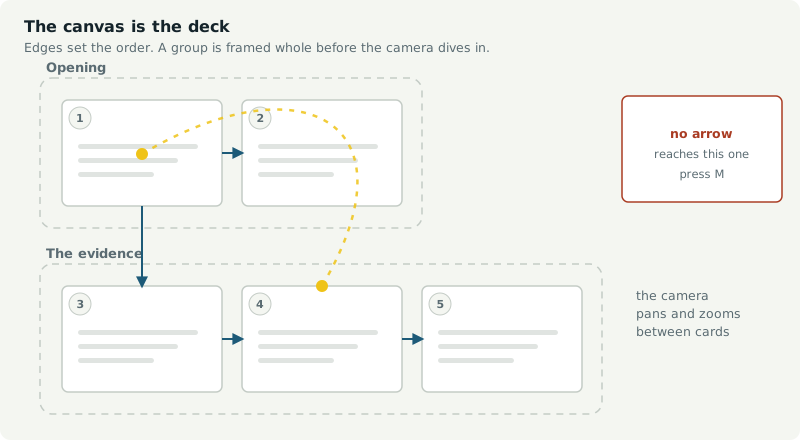
Arrows set the order. The deck follows them depth first: a branch is told to its end before the next one begins. A card with no arrow into it is a starting point; if there are several, they run in the order the canvas stores them.
Groups become sections. Any card geometrically inside a group belongs to it, and the group's label names the section — shown on the map above the group, and in the header while you are inside it. Turn on Section overviews and the camera pulls back to frame the whole group before diving into its first card.
#start on a card begins the deck there, whatever the arrows say.
Markdown and reveals
Cards are ordinary Obsidian markdown. Headings, bold, links, callouts, embeds.
## The decision

We are going with option B.

+++

Because option A needs a survey we do not have.

%%Pause here. Someone always asks about the survey.%%| Written | Does |
|---|---|
+++ on its own line | Everything after it waits for the next press |
%%…%% | A speaker note — stripped before the card is drawn, shown only in the presenter panel |
[[A note]] | Click it while presenting to read that note over the deck |
A card longer than the screen scrolls: pressing → scrolls it before moving on, so a long note can be read in place without leaving the deck.
Pictures
Obsidian's own sizing works on a card: ![[plan.png|420]] is 420 wide
with the shape kept, ![[plan.png|420x260]] is forced into that box,
and the number is pixels on the card, not on the screen. Several pictures
written on one line become a row rather than a stack.
Three ways to put more than one picture on a card.
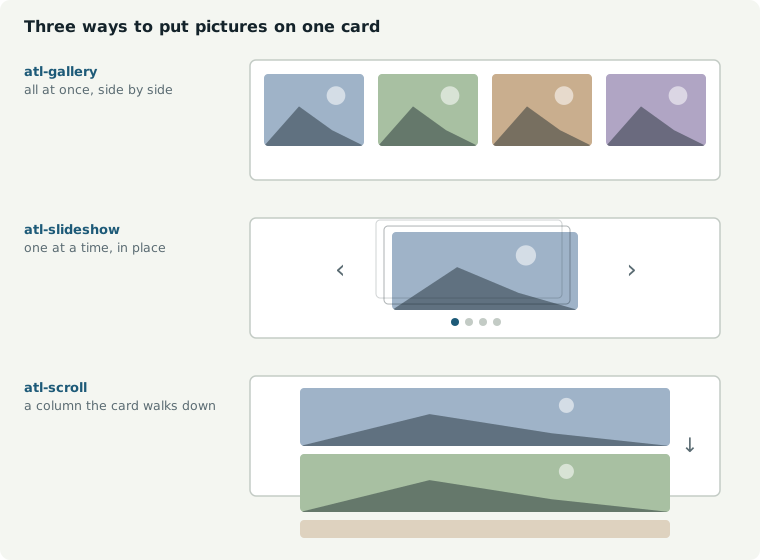
| Tag on the card | Pictures are |
|---|---|
#gallery | All at once, side by side |
#slideshow | One at a time — → moves to the next before leaving the card |
#scroll | A column you scroll through |
Put pictures inside a card, not on their own. A media card is named by its filename, which is fine when you chose it and poor when a camera did. A picture in a card with a heading gets a name you chose and a caption for free.
Sound, video and the web
A sound file on a card is given a face rather than a 40px player adrift in the middle of a slide: its name, how long it runs, and bars that move only while it is playing. Better still, put it inside a card — then you choose the heading and have room to say why anyone is listening.
## The site call, 3 March

The bit about the shutdown window starts around 40 seconds.

![[call-3-march.wav]]
Video plays on a card the same way. .mp4 (H.264) and
.webm work; .mov and .mkv usually do not
— Chromium cannot decode those containers, so you get a black rectangle with
working controls. The file is fine; re-wrap it. A voice memo saved as
.webm has no picture at all, and Atlas shows it as a bar once the
metadata says so.
A link to the web opens over the deck, not in your browser. Obsidian would hand it to the system browser, leaving the talk behind a window you then have to find your way back from, in front of a room. Esc closes it. The bar carries the address and a way out to a real browser — always there, because a site that refuses to be shown inside another page says so in a header whose effect cannot be seen from inside.
Card roles
A line holding nothing but tags is an instruction. It is removed before the card is drawn, so it never reaches the slide — which means the note stays readable and shareable on its own, with no CSS in it.
Every Atlas theme implements the same names, so a deck written against one theme works against all of them.
| Tag | The card becomes |
|---|---|
| (none) | An ordinary card: heading and text |
#title | The opening card — large heading, a line beneath |
#section | A divider carrying only the section's name, inverted |
#quote | A pull quote, set large with an opening mark |
#stat | One large number, centred, with a line about it |
#dark | The same card, inverted — for a point you want to land |
#agenda | A running order: numbered, set large, one line to a row |
#end | The closing card — thanks, a contact, a next step |
#full | A picture with no margin, filling the card — words on it take their line, the picture fills what is left and crops |
#focus-left | Which part of a cropped picture is kept. #focus-right and #focus-centre are the other two; centred is what happens anyway |
#fade-left | Dissolve the picture’s left edge into the card rather than cutting it off — #fade-right and #fade-both too. Pairs with #focus-right |
#split | Two flowed columns — text spills from one into the next |
#banner | The #deck card's opening slide. Given to it automatically |
Two more, which split the card themselves and say what becomes of the first block. Add either to a column role, or write one on its own:
| Tag | What it does |
|---|---|
#band | The first block runs across the top of the columns, whatever is in it |
#noband | Every block is a column, including the first, even if it is only a heading |
Say neither and the old rule holds: a first block of nothing but headings becomes a band, anything else is a column.
Placed layouts
#split flows: text runs out of the bottom of the left column into
the top of the right, and you cannot say what goes where. These four let you say.
They split the card at a --- rule.
#two
# This heading spans both
---
The left column.
---
The right column.| Tag | The card becomes |
|---|---|
#two | Two columns, side by side, equal width |
#compare | The same, drawn as two panels being weighed against each other |
#left | A picture filling the left half, text centred on the right |
#right | The mirror — text left, picture filling the right |
Two blocks make two columns. A first block of nothing but headings becomes
a band across the top instead of a column. For #left and
#right, the order on the card is the order on the screen — write the
picture first for #left, second for #right.
+++ reveals work inside a column.
Placing a block yourself
:::pin lifts a block out of the flow and puts it against the
card. :::align leaves it in the flow and places it inside its
column.
:::pin top-right row
![[a.png|90]] ![[b.png|90]]
:::

:::align bottom-left
The foot of this column.
:::
Nine places for both — top-left top top-right left centre right
bottom-left bottom bottom-right — and row lays the block
across instead of down. A block with no closing ::: runs to the end
of its column, so the closer is only needed when something follows it there.
Advanced Slides' <grid> says the same thing and is accepted as
written, so a deck carried over keeps working:
<grid drag="40 60" drop="topright">…</grid>
<grid drag="30 20" drop="10 72">…</grid>
drop takes a name or an x y pair in percent,
drag is width and height in percent, and flow="row"
lays it across. Markers inside a code fence are left alone, so a card can
document them.
Tables and lists
Neither needs a tag. Obsidian's own table styling is sized for a note at 14px
inside a card the camera then scales onto a projector — a postage stamp in the
wrong colours. Atlas restyles both for a slide: a ruled header row, banded rows,
tabular numerals, markdown's ---: and :---: alignment,
accent-coloured bullets and real checkboxes for a task list.
| Option | Weeks | Cost | Risk |
| --- | ---: | ---: | :---: |
| Do nothing | 0 | £0 | High |
| Patch it | 4 | £18k | Medium |
HTML cards
For a card that needs full control, write HTML in a fenced block. It renders into a shadow root, so its CSS cannot leak into the rest of the deck and the deck's CSS cannot reach in.
```html
<style> .box { padding: 8cqh; font-size: 4cqh; } </style>
<div class="box">Anything you like</div>
```
Use container-query units — cqh, cqw — rather than
pixels, so the card scales with the screen instead of fighting it.
Scripts
A card can carry a <script>. Script execution is off by
default — turn it on in settings, for vaults where you trust the cards.
Two things are already in scope:
var box = root.querySelector('#chart');   // root = this card's shadow root
host.addEventListener('atlas:enter', start);
host.addEventListener('atlas:leave', stop);
Look things up through root: document sees a different
tree and finds nothing. Anything thrown is printed on the card rather than lost.
Scripts travel with an export, wrapped so that root and host
mean the same there, and the card is told atlas:enter and
atlas:leave as it comes on and off camera. They are only included
when this setting is on: a card not trusted to run in Obsidian should not start
running because it was sent to somebody.
How a card is named
The same name is used on the map, in the next-card line, in the presenter panel and in the minutes.
| The card | Is called |
|---|---|
Opens with ## The decision | “The decision” |
| A tag line, then text | The first line of real content — tags and notes are skipped |
site-plan.png | “site-plan” |
Pasted image 20251029102222.png | “Image · 29 Oct 2025” — clearly automatic names are replaced |
The #deck card
A card tagged #deck configures this canvas alone — so a client deck
and an internal one can look different without anyone going into plugin settings
— and, if you write anything under its settings, opens the talk.
That content is the banner: a real card, rendered like any other,
presented first. It is sized for you — as wide as the first section, never wider
than the canvas, never flatter than 4:1, and as tall as the cards below it.
Dragging the card changes nothing; resize the first group and the banner
follows. It is given the #banner role; write a role of your own and
yours is used instead. The deck's line and the card number are hidden on it, and
the logo is shown at banner size. A #deck card carrying settings and
nothing else has no banner and no extra stop.
#deck
theme: Atlas/Themes/Paper.css
header: {deck} · {section} · {n}/{total}
logo: Assets/logo.png
transition: fade

# Northwind Depot
Controls plan, rev A · **Sam Avery**
key: value lines set options. Anything else is the deck's title
block, rendered into the band above a section overview. In the header,
{deck}, {section}, {n},
{total} and {date} are filled in as you go — as is
any key of your own.
Each key changes this canvas alone and leaves your settings untouched, so a client deck and an internal one can differ entirely.
| Key | |
|---|---|
theme: | A .css file by its full vault path. The theme brings its own backdrop, so this is usually the only line you need |
backdrop: | Any CSS background behind the cards — a colour, or a gradient. Atlas/Themes/Backdrops.css lists two dozen to copy |
image: dim: | A picture behind the cards instead, and how far to darken it so slide text stays readable |
colour: | A flat colour behind the cards |
logo: | A vault image on every slide. Several, comma-separated, sit in a row — a joint venture, or a client mark beside your own. logo corner: and logo height: place it |
accent: | Overrides the theme's accent. Usually better left to the theme, which picked one that goes with the rest |
header: | The standing line above the deck |
variant: | Present this talk by default — the one its #only- and #skip- tags name |
advance: | advance: 8s runs the deck by itself for an unattended screen. Any keypress stops it, because someone has arrived |
fit: align: transition: | Framing, vertical placement, and how one picture gives way to the next |
Themes
A theme is one CSS file in your vault. Point at it in settings, or per canvas
with a theme: line on the #deck card.
Paper
Editorial light — warm paper, near-black ink, deep blue accent.
Slate
For a dim room — deep slate cards, pale text, a cool accent.
Plain
Follows your Obsidian theme. Nothing imposed but the roles.
Mono
Black on white, oversized, one red accent. For a bad projector.
Blueprint
A drafting grid behind the cards, mono headings, cyan.
Harbour
Deep blue on warm white, with a colour for every section.
Midnight
Near-black with a vignette and an accent glow.
Gold
Near-black with a gold plate at the head of every card.
Onyx
A drafting grid behind flat black cards, one cold accent.
Bronze
Warm black, no card edges, big type, deep shadow.
Glass
Translucent cards, frosted — for a deck with a picture behind it.
The picker lists only stylesheets that are actually Atlas themes — a vault that has ever exported a reveal.js deck holds dozens that would do nothing here.
A theme carries its backdrop too, so picking one is the only choice most
decks need. A backdrop: line on a #deck card overrides
it for that canvas and takes any CSS background:
backdrop: linear-gradient(180deg, #FBFCFA, #E4EAEC)
Atlas/Themes/Backdrops.css lists two dozen ready to paste, and
Atlas/Backdrops/ holds the same set as image files if you would
rather pick one in settings.
A picture behind the cards
Two lines on the #deck card, and they beat both the theme's
backdrop and any backdrop: line:
#deck

theme: Atlas/Themes/Glass.css
image: Atlas/Backdrops/Harbour fall.svg
dim: 0.35
image: is a vault path — no brackets, no exclamation mark,
and spaces in the name are fine. dim: is 0 to 1 and lays black over
the picture so the deck stays readable: photographs usually want 0.45 to 0.6,
the flat SVG backdrops 0.2 to 0.4.
A backdrop wants one tone across the middle where the cards sit, detail only at the edges, and no focal point of its own — the card is the focal point. Glass is the theme built for this case: translucent cards over a frosted blur, so the picture carries colour through the deck rather than hiding behind it.
To make your own, copy Atlas/Themes/_Template.css — it documents
every token with what it touches — and change the block at the top. A theme is
only a list of values: the card roles live in the plugin, so they work with any
theme and with none.
One map, several talks
The same canvas often serves a ten-minute version and an hour. Tag cards rather than duplicating the canvas.
| Tag | Means |
|---|---|
#skip-short | Leave this card out of the talk called “short”. It stays in every other one. |
#only-short | Show this card in “short” and nowhere else. |
Run Present a variant… and Atlas offers the talks it finds. A
variant: line on the #deck card names the default.
Sub-decks
Put a .canvas file on a canvas as a card and it is drawn to scale —
you can see how big the detour is before taking it. Press Enter to
present it, and Esc to come back to the card you left, with the same
history and the same notes still gathering.
Export, preview, PDF
Export to HTML gives the deck a folder of its own under
Settings → Atlas → Export folder (Atlas/Exports by
default). Inside it: the HTML file, with every picture and the whole stylesheet
carried within it, and any sound or video beside it under a relative link.
Share the folder — or zip it — and the deck is complete. No Obsidian, no
plugin, no network; it opens in any browser on any machine.
A deck with no recordings in it is a folder holding one file, which can be sent on its own. Where a file genuinely cannot travel, the card says so rather than showing a control that does nothing.
The exported file behaves like the deck — reveals step, slide shows move, O opens the overview and M the schematic map, B blanks, and a card's own script runs if this vault allows it.
Open the exported file in a browser and print it. The same file carries a second, print-only layout: one card per page, landscape, every reveal shown and picture stacks un-stacked, so nothing is lost on paper. PDF is deliberately the browser's job — its engine is better than anything a plugin would ship.
Preview, and the edit loop
Preview the export opens that same document, running, in a tab beside the canvas. Press Refresh after editing and it rebuilds. Nothing is written to the vault — it exists to answer “what will the person I send this to actually see”, which only the exported document can answer.
The export is a file, not a live view. There is no auto-refresh, because
a page opened from file:// cannot watch your vault. Re-exporting
overwrites the same path, so the loop is: edit → export → F5 in the
browser tab.
Notes and minutes
One note per deck. The deck's notes live in a single note beside the canvas, with the canvas's own name and a section for each card. Presenting the same canvas again opens the same words, so a remark can be edited or added to rather than filed away in another dated file.
---
type: deck-notes
canvas: Talks/Northwind.canvas
---

# Northwind

## The controls plan
%%card: 3f9a21%%
Lead with the programme, not the model.

---
Presented: 14 Sep 2026 · 18 Sep 2026
A card is identified by its canvas node id, never by its title. Rename a card and its notes stay; delete the card and they move to Cards no longer on the canvas rather than vanishing, so re-adding it puts them back. Anything you edit by hand is left alone — only the card you just noted on is rewritten. A card carrying a note wears a dot in its corner while you present, with a ring round it when the note was spoken rather than typed.
Turn Keep one note per deck off in settings for the older behaviour: a new dated write-up every session.
N writes a note against whichever card is on screen. One card holds one note, kept at the time it was first made, so pressing N twice adds to it rather than starting a blank one you cannot see.
R speaks it instead. Say the thing, press R again, and the clip is attached to the same card as if you had typed it. A pip appears in the corner with a live level meter — a recorder that captured nothing is discovered after the meeting, when the thing it was recording cannot be repeated.
Shift+R records the whole meeting, and the write-up indexes it by card:
| At | Card |
|---|---|
| 0:00 | Opening · Northwind Depot |
| 2:14 | The evidence · What the survey found |
| 8:41 | The decision |
That table is the reason to have this. The deck knows which card was on screen at
every moment, so one long recording chapters itself — something no recorder can
do, because none of them know what you were talking about. It is all local:
MediaRecorder is built into the app Obsidian runs on, so there is no
plugin, no key and no network.
Nothing is lost. Every note and card visit is written the instant it happens, and a running recording is flushed to disk every two minutes. If Obsidian crashes you are told next time it opens — “a session from Tuesday 14:02 was never written up” — with a button to write it up. The journal is deleted only once the minutes exist.
W opens the whole session — every card that carries anything, in the
order you visited it, each editable in place. A line written as
- [ ] something is counted as an action. Create the note when it
reads right and Atlas writes the minutes, then opens them.
They are ordered the way minutes are read, not the way the talk ran: frontmatter a vault can query, an at-a-glance block, empty Attendees and Decisions headings for a person to fill in, then Actions, and only then the notes under the card each was made on. Whoever opens it a fortnight later wants the actions, and should not have to scroll past twenty cards.
An action is a checkbox once. Where it appears again in the notes it is
written as → … — two boxes would have the Tasks plugin count the
same job twice. And a card's own %%notes%% are left out by
default: they are your prompts, and minutes get sent round.
Every # line
Two families. Markers change what a card is; roles change how it looks. Both are stripped before the card is drawn.
| Line | Means |
|---|---|
#deck | This card is the deck's title block and settings. Never presented. |
#start | Begin the deck here, whatever the arrows say. |
#skip-x | Leave this card out of the talk called x. |
#only-x | Show this card in x and nowhere else. |
#gallery #slideshow #scroll | How this card's pictures are laid out. |
| Roles | #title #section #quote #stat #dark #agenda #end #full #split |
| Placed layouts | #two #compare #left #right |
Any other bare tag line becomes a CSS hook on the card —
#costing gives you .atl-tag-costing to style in your
own theme. A tag shown inside a code block is documentation, not a hook.
Asking your notes
Minutes accumulate. Six months of them is where the answer to “what did we decide about the field app?” actually lives, and by then you have forgotten which meeting it was. The magnifier in the ribbon — or the command Ask your notes — puts a question to them.
It is off until you point it at a model, and everything about it is built so it cannot quietly become something else.
It runs on your machine. Where questions may go defaults to On this machine only, which never contacts anything but a local server whatever else is configured. Two other settings allow OpenAI as a first or second choice; both need a key you enter yourself, and every answer says which model produced it — including that the notes were sent. A key lives in the plugin's data file, which is inside your vault, so it travels with any sync or backup. The panel says so where the field is.
It works the way you would, and shows you. Your question becomes search terms; the search returns candidates; the model reads their extracts and says which are worth opening — or that none are; it answers from those; then it reads its own answer back against them. Each step appears as it happens, so you can see which note it decided to read.
● Looking for: intake survey findings
● 9 notes mention it
● Reading Northwind Depot 14 September, Intake survey 2026
● Every part of it is in the notes
Refusing is decided on evidence, not on word counts. Asked for the budget for a swimming pool, every scoring rule tried here surfaced a schedule line about a pool and courtyard, because the word was there. Shown the extract and asked whether it bears on the question, the model says none of them do — and you get “No note found on that topic” without an answer ever being written. Every answer carries its sources as chips you can click, because a claim about what a meeting decided gets repeated in another meeting.
Telling a 3B model “reply NOT FOUND if the notes do not contain the answer” made it reply NOT FOUND to a question the notes answered in one line — measured, twice. Letting it invent better search terms was worse: it turned PPC into pay-per-click. Recognising is a small model's strength and generating is not, so it is only ever asked to recognise.
Running a model
Full instructions — including what a plugin update does and does not touch — are in docs/local-model.md.
No model ships with Atlas, and none is downloaded for you. Models are gigabytes and are not a plugin's to distribute, so this is a thin client: you install a server, Atlas talks to it. Until you do, the feature is invisible — no ribbon icon, no button on the bar, and no network call of any kind. Everything else in Atlas works exactly the same without it.
Any server speaking the OpenAI chat API works — Ollama on 11434, or
llama.cpp's llama-server, which points straight at a
.gguf with nothing to download:
llama-server -m path\to\model.gguf --host 127.0.0.1 --port 8080 -c 4096
Then Settings → Atlas → Asking your notes, paste the address, and press
Test. It says what is wrong rather than failing silently: server not
answering, no models pulled, or connected with the list.
qwen2.5:3b is a good starting point at about 2 GB, and changing
the model is one field.
Settings
Settings → Community plugins → Atlas Presenter. The panel is grouped, and the bottom of it is a full reference with copyable examples — the same material as this page, inside Obsidian.
| Group | Covers |
|---|---|
| Starting a presentation | The handbook, your shortcut, and a button to Obsidian's hotkey pane |
| Camera | Flight duration, section overviews, framing padding, contain/cover, maximum zoom |
| Theme and background | The theme first, since it decides everything including the backdrop; then the backdrop if you want to override it, the folder both image pickers draw from, accent, off-camera card opacity |
| Logo | Any vault image, corner, height, opacity. Several, comma-separated, sit in a row |
| Pictures and media | Slide show transition, how pictures fit, video autoplay |
| On screen | Bottom bar and counter, header line and where it shows, section titles, card alignment, next-card title, progress rail, timer |
| Notes and minutes | Where minutes are filed, a local speech server if you have one, write-up on leaving, what goes in an action |
| Asking your notes | A local model server and which model, where to look, and whether questions may leave the machine |
| Browsing the vault | What G opens — Obsidian's own graph view, or the one inside the deck |
| HTML cards | Whether a card's <script> may run. Off by default |
| Reference | The full authoring reference, with copyable snippets |
If something is wrong
| What you see | Why |
|---|---|
| A command is missing from the palette | A canvas must be the open, active tab. The commands hide themselves otherwise. |
| A hotkey does nothing | Check it saved: Settings → Hotkeys, search Atlas. Combinations using Enter cannot be recorded. |
| New features are not there | Reload Obsidian with Ctrl+R after updating. |
| A card script does nothing | Script execution is off by default. Turn it on under Writing cards. |
| The theme picker is full of noise | Stylesheets under a Themes/ folder are listed first. Put yours there. |
| Arrow keys move a card on the canvas | Should never happen — the deck swallows every navigation key. Please report it. |